Body
When to Use?
Follow these instructions to add captions to Panopto video.
Procedure
Once a video has been uploaded to Panopto, closed captions can automatically be added when editing/trimming the video.
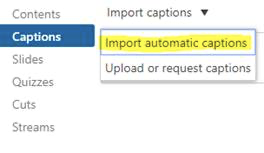
- Click the Edit button to open the editor. In the panel on the left select Captions. Next, select Import automatic captions.
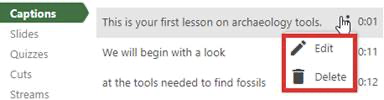
- Captions can be edited for accuracy as you listen to the playback of your recording. Click the three dots next to the caption. Choose Edit.
- This video will walk you through the process.
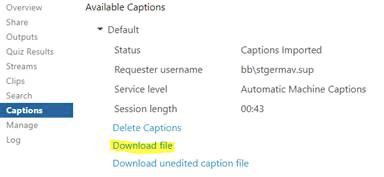
- After editing captions, download a copy to use as a transcript by clicking Captions.
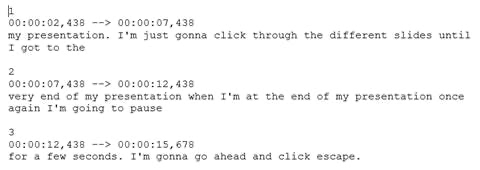
- The file can be easily edited if needed.
Downloading a Video Transcript
Video transcripts, based off the captions, can be downloaded by both the creator and viewer of the video. You can learn more about how to download the video transcript here. It is recommended that instructors include the video transcript alongside any Panopto video they embed and share in their Blackboard course.